
Adding Objects Using Plugins
First a comment: Plugins can place objects, but there are some limitations / complexities associated with doing this dynamically as opposed to simply adding the object to the aircraft itself using Plane Maker, or adding it directly to the scenery using WED. However, you may have an excellent reason to do this, so here we’ll provide a couple examples.
For these examples, we’ll be using the tetrahedron object file (tetrahedron.obj)
already located under Resources/plugins/PythonPlugins. You can use any obj file with
the appropriate path.
Relative the Aircraft
To place this object near the current aircraft (what does this mean…) use datarefs to determine the x, y, z positional coordinates (of the aircraft) and set an instance of this object at that location.
The position coordinates retrieved by these dataRefs represent the center of gravity of the aircraft, with +y pointing up.
As the center of gravity will be (usually) be inside the aircraft, we can make it easier to see this object, but
raising it up by one meter: by adding +1 to the y coordinate.).
>>> obj = xp.loadObject('Resources/plugins/PythonPlugins/tetrahedron.obj')
>>> obj
<capsule object "XPLMObjectRef" at 0x91a78f30>
>>> instance = xp.createInstance(obj)
>>> instance
<capsule object "XPLMInstanceRef" at 0x91a78990>
>>> x = xp.getDatad(xp.findDataRef('sim/flightmodel/position/local_x'))
>>> y = xp.getDatad(xp.findDataRef('sim/flightmodel/position/local_y'))
>>> y += 1
>>> z = xp.getDatad(xp.findDataRef('sim/flightmodel/position/local_z'))
>>> pitch, heading, roll = 0, 0, 0
>>> xp.instanceSetPosition(instance, (x, y, z, pitch, heading, roll))
And we now have the tetrahedron hovering over the airplane.
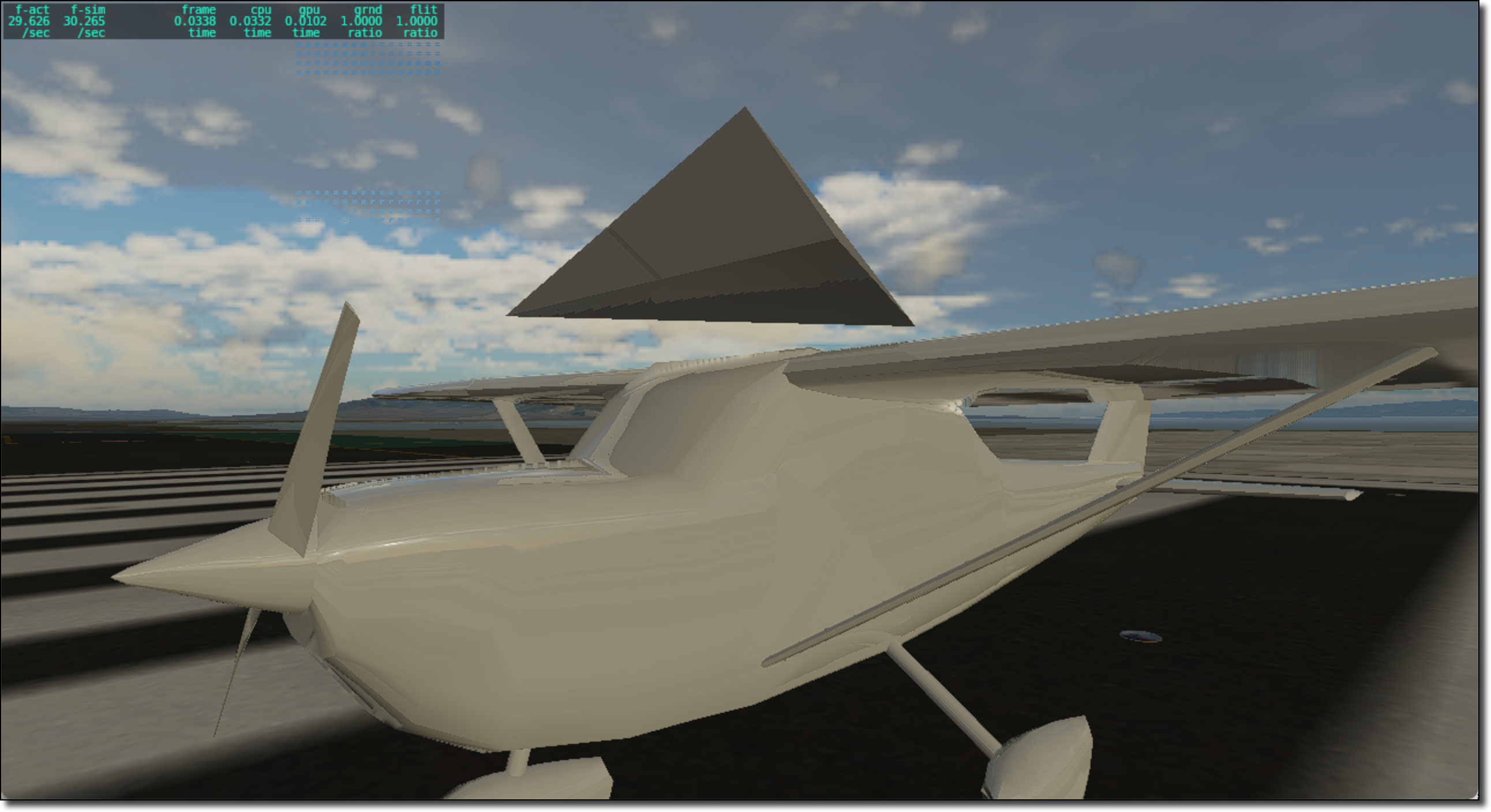
Note this is not actually associated with the airplane: as the plane moves, this
object (actually, instance of the tetrahedron object) will remain were
we set the original position using xp.instanceSetPosition() until we set
the position differently. This can entail calling xp.instanceSetPosition() within
a flight loop to continuously updating the object’s position as the aircraft moves.
While identifying “up” using the position coordinates is easy, trying to position an object, for example, 1 meter along the right wing requires a bit more math.
See the PI_RightWingTip.py sample file for more details on positioning.
But, of course, if we want it to be part of the aircraft, we should add the object to the aircraft. See Adding Objects to Aircraft.
Relative the Scenery
To place an object at a specific world location, you’ll need to determine the world-coordinates
and then translated that to local (x, y, z) coordinates, using xp.worldToLocal(latitude, longitude, altitude),
where altitude is meters MSL.
Latitude and longitude are easy, altitude may be a bit tricker to determine as you’ll probably want to do something AGL rather than MSL. Say you want to place your object 0 AGL at the geographic center of the United States (44.967243, -103.771556), in South Dakota, near the northeast corner of Wyoming.
While the surface elevation at that point is certainly knowable via Google, you’ll want to programmatically determine
what X-Plane uses as the elevation at that point. This is done using a scenery probe, xp.probeTerrainXYZ().
Set the third parameter of xp.worldToLocal to something very large: you need to be above the terrain in order
to probe for a value. Using the returned values, feed it to a scenery probe at get the resulting values
for locationX, locationY, locationZ
>>> x, y, z = xp.worldToLocal(44.967243, -103.771556, 10000)
>>> probeRef = xp.createProbe()
>>> info = xp.probeTerrainXYZ(probeRef, x, y, z)
>>> if info.result != xp.ProbleHitTerrain:
...     raise ValueError("Probe out of range")
>>>
>>> xp.instanceSetPosition(instance, (info.locationX, info.locationY, info.locationZ,
...                                   pitch, heading, roll))
Note that scenery probes are limited: you cannot query “the whole world” accurately. Probes work only with nearby
locations, so your user aircraft will need to be within about one degree of latitude / longitude in order to
get a valid result. Too far away and xp.probeTerrainXYZ() return info.result == xp.ProbeMissed. There is
no way to work around this.

But, as with the Aircraft example above, if we want it to be part of the scenery, we should add the object to the scenery. See Adding Objects to Scenery.
