
Object Tools
(TBA)
ObjView
Download from http://developer.x-plane.com/tools/xptools/.
Start it up, and drag an OBJ8 (*.obj) file onto the window. (Note this will not display OBJ7 files.) If you also drag in the correct PNG file it will overlay.
Key Commands:
a |
Toggle animation |
c |
Toggle back-face culling. Normally one-sided geometry is only one-sided, but this option overrides it. |
f |
Toggle display of solid vs. wireframe. |
l |
Toggle lighting (OBJ8 only) |
m |
Lower case: Measure the current object and display its X, Y, and Z dimensions in meters (this does not appear to work.) |
M |
Upper case: Toggle measure-on-open (initially off). When on, any object that is opened is immediately measured. Useful for finding the dimensions of a lot of objects. |
n |
Toggle night lighting. |
- = |
Scale size of object up or down. |
1-5 |
Show LODs 1-5 (OBJ8 only). |
Here’s the 737 node gear object 738nodegear.obj as seen in ObjView, with its texture file
738gear.png 1, and with animation enabled.
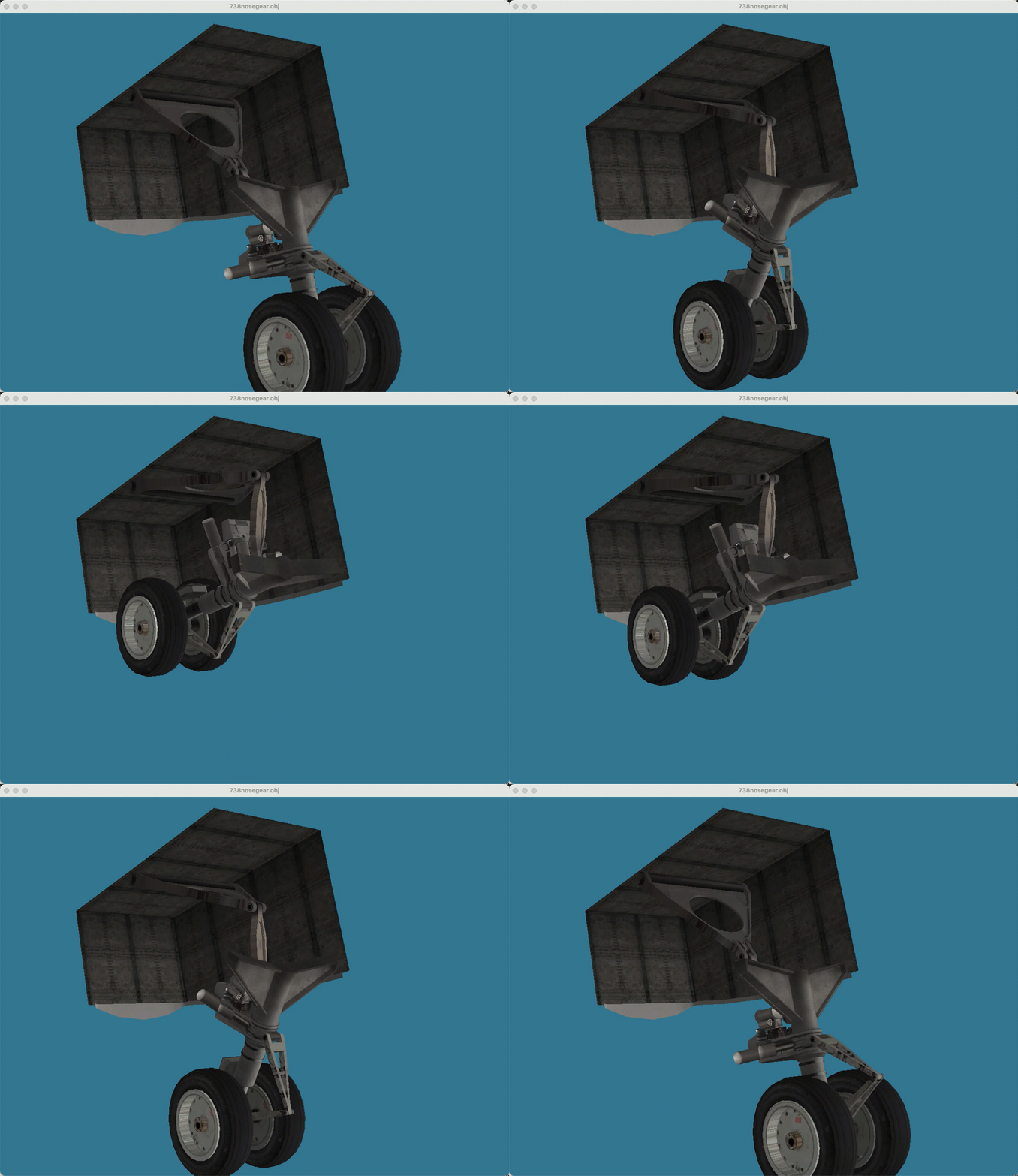
(There seems to be no way to “clear” previously displayed object)
Download XP Tools http://developer.x-plane.com/tools/xptools/
—
- 1
Actually, the real 738 object doesn’t use
738gear.pngit uses738gear_NML.pngas the normal texture, so you need copy the normal texture to738gear.pngand drag that file onto the ObjView window.
